Skip to main content

- Go to homepage
- Study
- MFA
- authenticator apps
Set up multifactor authentication on authenticator apps
Learn how to securely log in to TAFE NSW systems using multifactor authentication (MFA). Follow the steps on this page to:
- set up an app such as Microsoft Authenticator or Google Authenticator, and pair it with your TAFE NSW account
- use your MFA app when you log in.
Before you start
You’ll need:
- a computer connected to the internet
- your mobile device with your choice of authenticator app.
Account security
If you see a request on your device when you’re not trying to log in, it could be someone else with your password. If this happens, change your password immediately and report it to Student Services on 131 601.
Step 1: Install authenticator
This example uses Microsoft Authenticator, however, all authenticator setups are very similar.
-
Open the app store on your mobile device.
-
Search for Microsoft Authenticator and install it.

Step 2: Set up authenticator app
Option 1: If you have logged in to your TAFE NSW account before
If you’ve already logged in to your TAFE NSW account, you’ll need to adjust your account settings before you can activate MFA.
-
Log in to the Student Hub with your TAFE NSW account.
-
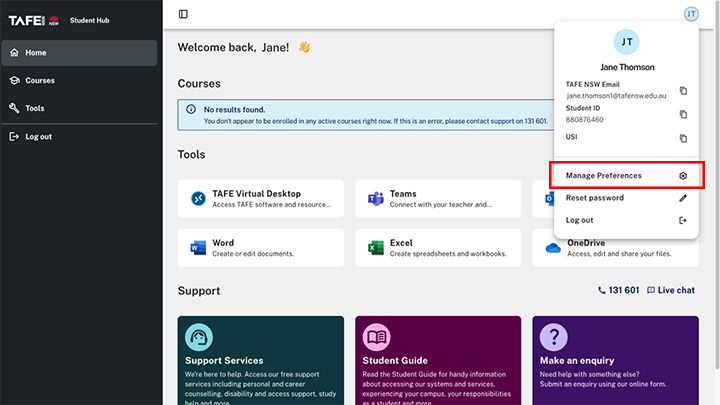
Locate your name in the top right corner and select ‘Manage Preferences’ from the dropdown menu.
-
Slide the MFA switch to ‘ON’.
-
Select ‘Save’.
-
Log out of your account, then log back in.
-
Follow the prompts to set up your MFA software.

Option 2: If you’re logging in for the first time follow the steps below.
On your computer
-
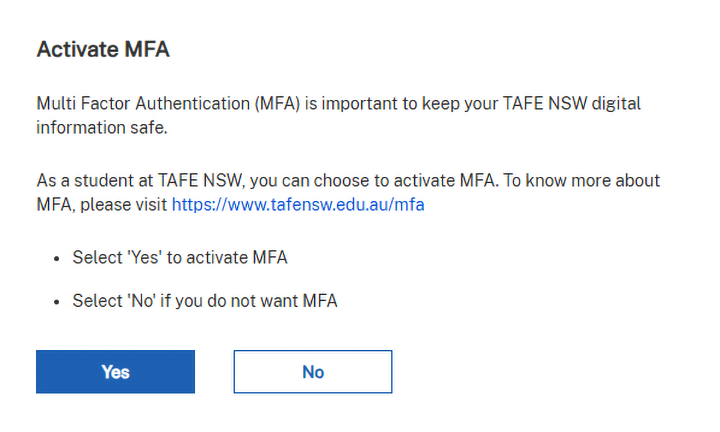
The first time you log in to a TAFE NSW system with your username and password, you will see the 'Activate MFA' screen.
-
Select ‘Yes’.
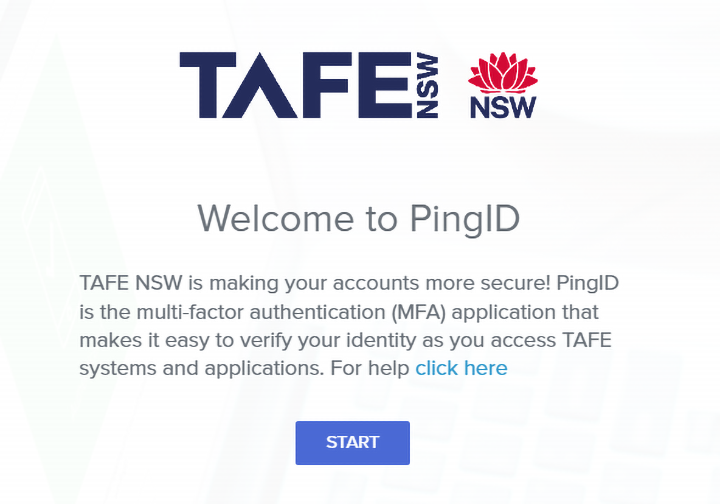
- You will see the ‘Welcome to PingID' screen. Select 'Start’.
-
Your computer screen will show ‘Add a new device’.
-
Select ‘Authenticator’.

Step 3: Pair your device
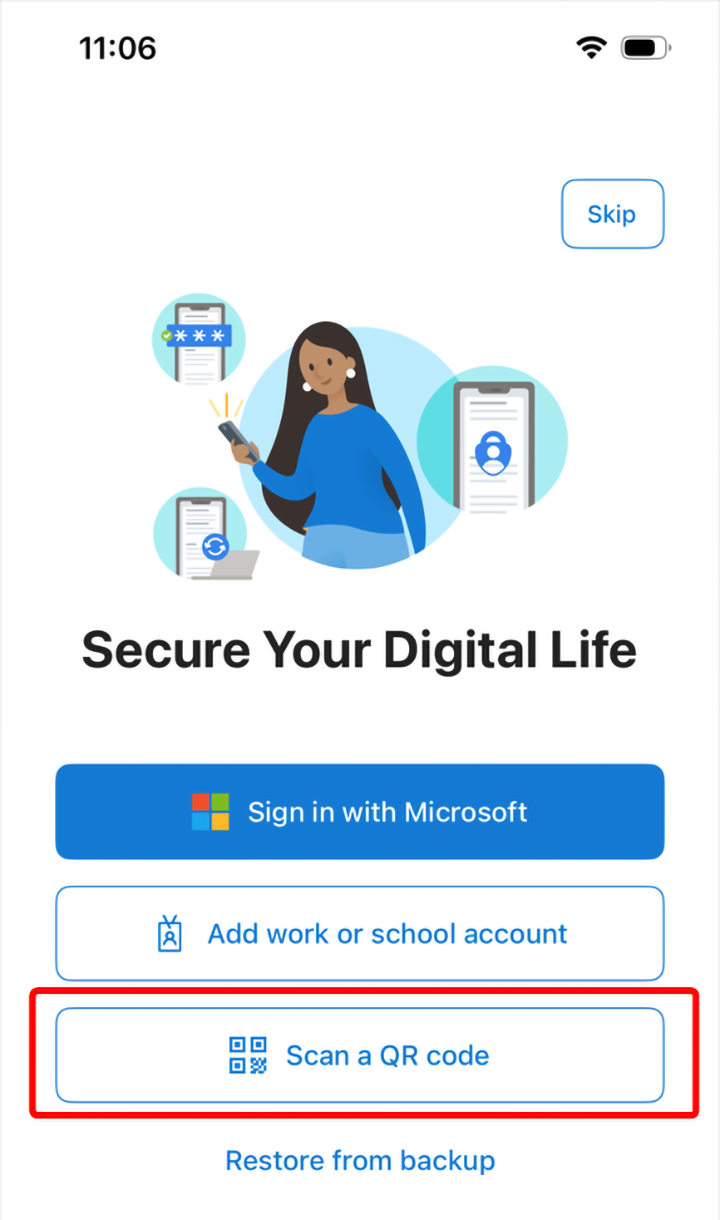
- On your mobile device, open the authenticator app and select ‘Scan a QR Code'.
-
Scan the QR code displayed on the ‘Authenticator Pairing’ screen.
-
On your computer, in the ‘Authenticator Pairing’ screen, select ‘Next’.

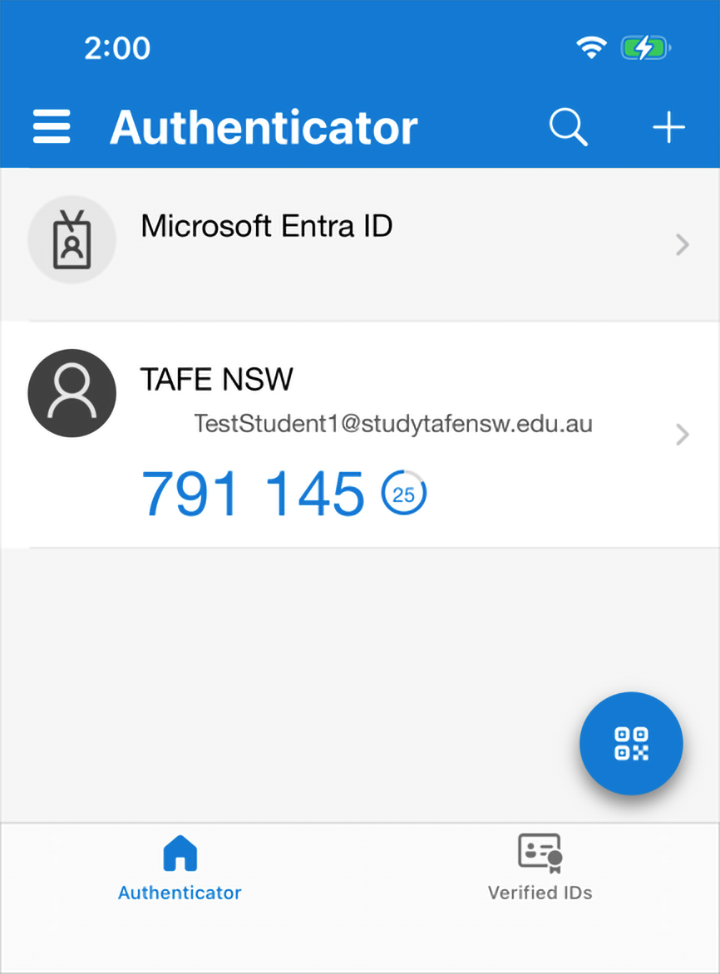
- Your authenticator app should display a passcode that will change every 30 seconds.
-
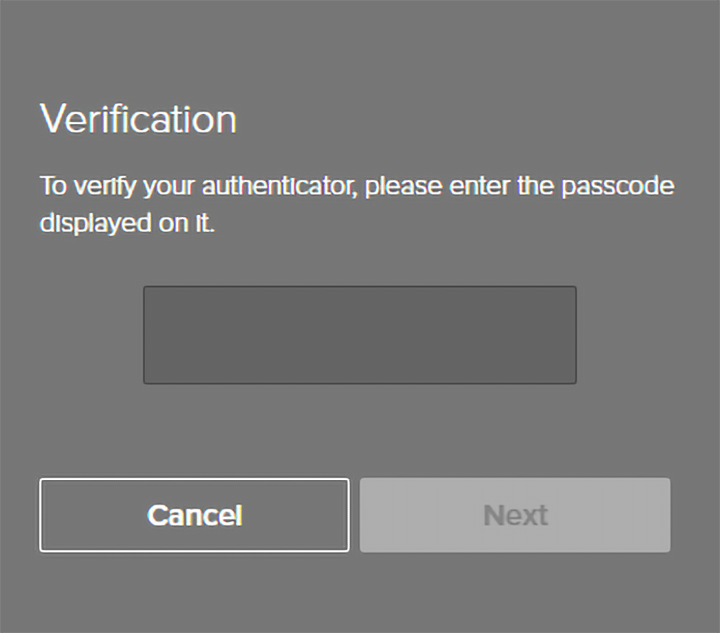
Your computer screen will request you to enter the passcode from the app.
-
Enter the passcode and select ‘Next’.
-
You should now be logged in and authenticated.
Logging in with your authenticator app
When you log in to the TAFE NSW system, you will need your mobile device with the authenticator app.
- After entering your TAFE NSW password, you will be asked for a code.
- Enter the code from your authenticator app and select ‘Sign on’.
- A green ‘Authenticated’ screen will appear after successful login.
If you don’t have your phone
If you don’t have your phone, you can follow these instructions to generate a one-time passcode. The passcode will be sent to your personal email address.
We’re here to help
For technical support check out our self-help guides or if you still need help, live chat or call the Student Technology Service Desk on 131 601 and follow the prompts.